OpenFront Mobile Controls
Tap, drag, pinch, radial menu, attack ratio, builds, nukes, and Warship selection on phone.
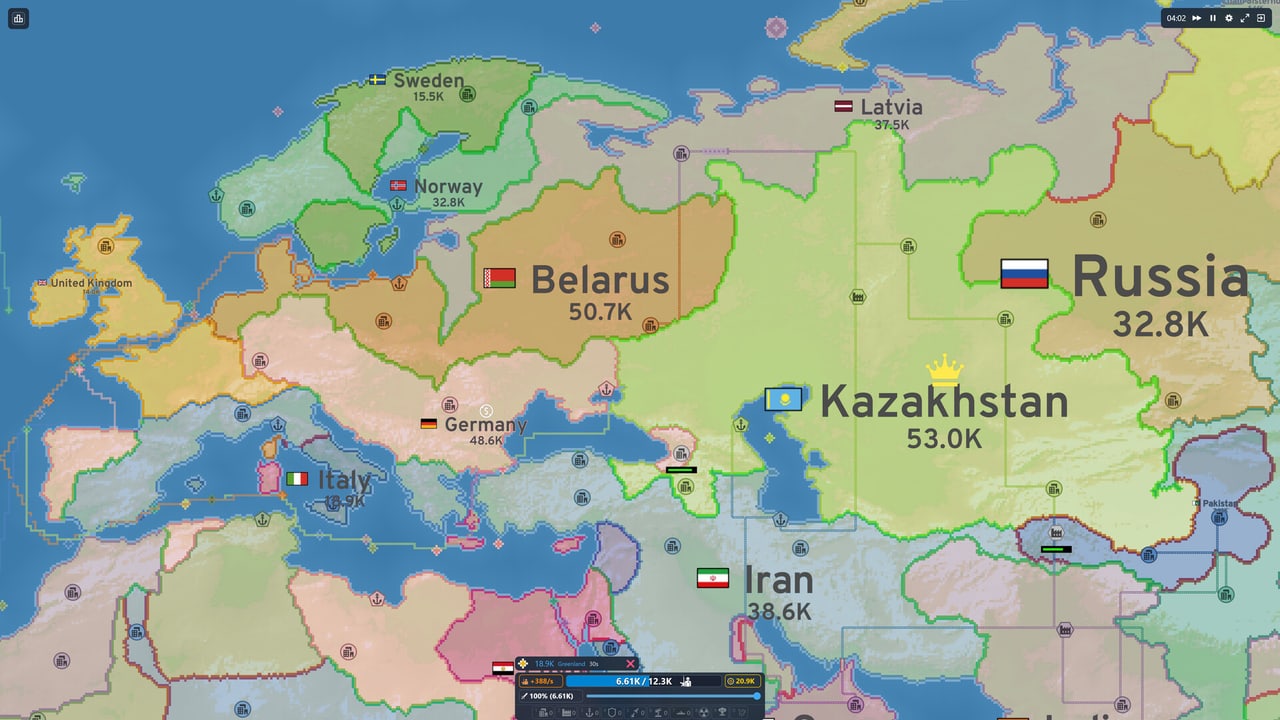
Use OpenFront on a phone without accidental attacks
This guide covers tap, drag, pinch, radial-menu actions, attack-ratio checks, builds, nukes, and Warship selection on mobile devices.
Basic touch actions
| Action | How to do it |
|---|---|
| Attack a tile | Tap on a border or enemy territory |
| Pan the map | Drag with one finger |
| Zoom | Pinch with two fingers |
| Select a structure to build | Tap the build icon, then tap a tile |
| Cancel a build | Tap the X or tap elsewhere |
Attack ratio on mobile
The attack ratio is harder to control on touch because there is no keyboard shortcut. Look for the ratio slider in the game interface:
- Tap the ratio display to open the slider
- Drag to adjust what percentage of troops each attack sends
- For neutral expansion, keep it low (20-40%)
- Raise it only when you can afford to commit more force
Radial menu
Long-press on a tile to open the radial menu. This gives you quick access to:
- Build options (City, Port, Factory, Defense Post)
- Nuke options (Atom, Hydrogen, MIRV)
- Unit selection (Warship, Transport)
Tap an option to select it, then tap a tile to place or launch.
Warship selection
When you have multiple Warships, tapping one may not select the specific unit you want. Look for these mobile selection methods:
- Tap the Warship icon in the unit bar, then tap the specific ship on map
- Use pinch-to-zoom to separate dense Warship clusters
- Long-press to bring up the unit radial menu
Avoiding accidental attacks
The most common mobile mistake is tapping the wrong tile and sending troops somewhere unexpected.
Tips to avoid accidents:
- Zoom in before attacking to see border details
- Use the pause button if available to give yourself time to think
- Double-check the highlighted tile before tapping
- Keep your attack ratio low until you are ready to commit
Pinch zoom and map reading
Pinch zoom lets you:
- Zoom out to see the whole map and regional trends
- Zoom in to read borders and place buildings precisely
- Separate friendly and enemy colors when they are close together
Nukes on mobile
Launching nukes on mobile requires careful targeting:
- Select the nuke type from the radial menu or unit bar
- Tap the target tile
- Confirm the launch when prompted
Be especially careful with MIRV launches. Each warhead can hit a different tile. Make sure you understand the target area before confirming.
Mobile versus desktop
Mobile play has these key differences:
- No keyboard shortcuts for hotkeys 1-0
- Harder to control precise attack ratios
- Slower map panning and zooming
- More accidental clicks possible
For the full first-match guide, read Getting Started. For App Store and APK questions, read Mobile App Download.
Frequently Asked Questions
Quick answers to the most common OpenFront questions.
How do I adjust attack ratio on mobile?
Look for the ratio slider in the game interface. Tap to open it, then drag to set what percentage of troops each attack sends.
How do I select a specific Warship on mobile?
Tap the Warship icon in the unit bar, then tap the specific ship on the map. Use pinch zoom to separate dense clusters.
How do I avoid accidentally attacking wrong tiles?
Zoom in before attacking to see border details, double-check the highlighted tile, and keep your attack ratio low until ready to commit.
Can I use hotkeys on mobile?
No. Mobile has no keyboard, so hotkeys 1-0 are not available. Use the radial menu or unit bar for building and nuke selection.
How do I zoom on mobile?
Pinch with two fingers to zoom in or out. This helps read borders and separate friendly/enemy territories.